Should a Laptop Go on the Left or Right of a Monitor?
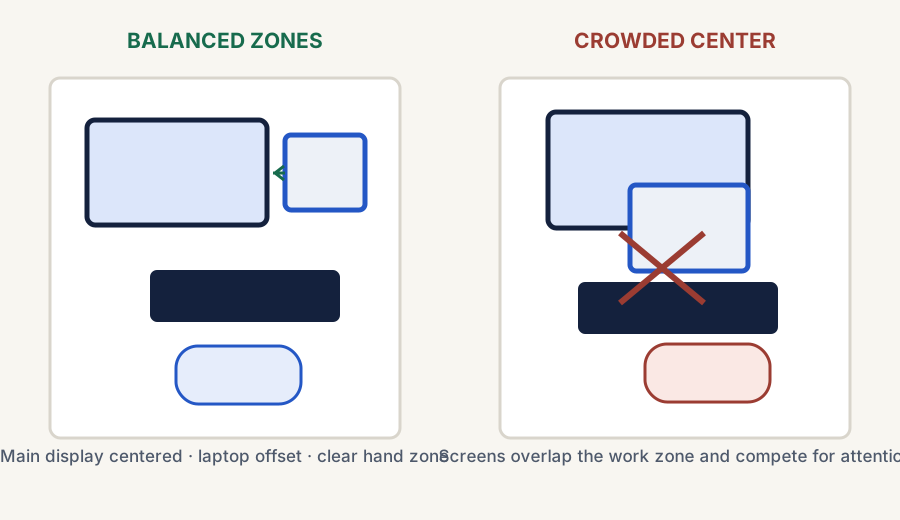
Put the laptop beside the external monitor when the monitor is your primary screen and the laptop is a true secondary display. Keep the monitor centered on your seat, place the laptop on the side you glance toward less often, and preserve the keyboard-and-mouse zone in front.
If you work equally from both screens, a laptop far off to one side can create too much head turning. In that case, move the laptop closer to the center line, raise both displays to compatible heights, or close the laptop and use the external monitor alone.
This guide focuses on where to place an open laptop when an external monitor is the main display. If the laptop stays closed, use the external monitor as the centered screen and keep the computer wherever ventilation, cables, and manufacturer guidance allow.
Before you buy
Will a laptop stand fit beside your monitor?
Measure the space your setup actually uses. A stand's folded dimensions describe what fits in a bag; they do not tell you how much desk space it needs with a laptop open. Use the same unit for every measurement below.
Your small-desk measurement checklist
Measure
What to include
Your measurement
Available side space
With the primary monitor centered, measure the clear width and depth beside it. Exclude the monitor base, dock and anything else staying on the desk.
Width: ____ Depth: ____
Stand in use
Check the manufacturer's deployed footprint at your intended height and angle. Measure both feet or the full base, not only the laptop support tray.
Width: ____ Depth: ____
Open laptop and cables
Allow for the laptop extending beyond the stand, the screen opening behind it, and connected plugs. Follow the laptop manufacturer's ventilation guidance.
Total width: ____ Total depth: ____
Keyboard and mouse area
Leave your keyboard in its usual working position and move the mouse through your normal range. Check that the stand and cables stay clear.
Clear: yes / no
Try a paper footprint first. Mark the proposed stand base on paper, lay it beside the monitor, and mark the extra room needed by the open laptop and plugs. This checks space only; it cannot establish stability, weight capacity, screen height or compatibility.
Example: if the clear side space is 30 cm wide and the stand is 25 cm wide, the base leaves 5 cm spare. An open laptop and connected plug spanning 34 cm still need more room. Check depth separately; spare width cannot make up for insufficient depth.
The whole setup fits: compare stands, then confirm the exact model's supported laptop size, load limit and deployed dimensions before ordering.
Only the base fits: rearrange the layout or choose a different footprint. Do not assume a smaller stand makes the laptop itself narrower.
You do not use the laptop screen: keep your current setup if it already works. A raised side display may add no value; check your manufacturer's instructions before choosing closed-lid use.
Use a stand when it helps put the screen used most directly in front of you at a comfortable viewing height without stealing the keyboard-and-mouse zone. An external monitor can stay on its own stand if that position already works; a laptop stand earns its space when the open laptop remains a useful secondary screen rather than desk scenery.
Where should you put a laptop when using a monitor?
Put the screen you use most directly in front of you. When the external monitor is primary, place an open laptop immediately beside it only if the laptop stays useful for occasional reference, chat, or call controls. If both screens need equal attention, bring the laptop closer to the center line or simplify to one active screen so the setup does not turn into a neck-turning contest.
Left or right?
Put the laptop on the side that needs fewer glances
There is no universal left-or-right winner. Keep the monitor you use most centered, then put a genuinely secondary laptop immediately to either side. Choose the side that keeps its usual tasks—chat, notes, call controls, or reference material—out of your most frequent sightline.
If you move between the laptop and monitor all day, the better fix is not a different side. Bring the two screens closer to the center line, reduce the angle, or choose one active display for the task at hand.
30-second placement check
Choose the layout by screen priority, not by symmetry
Choose the screen you read or edit on most. Put that screen directly in front of your chair.
Place the other screen immediately beside it. Keep a secondary laptop close enough for occasional glances, rather than at the far edge of the desk.
Change the plan if both screens are equally important. Bring them closer to the center, reduce the side angle, or use one primary display instead of forcing a wide split.
If the laptop docks with one USB-C or Thunderbolt cable, confirm that the connection path supports the monitor and charging before arranging the hardware. The single-cable setup guide covers those compatibility checks.
Start with the primary monitor centered, offset the laptop as a secondary screen, and keep both displays out of the keyboard-and-mouse zone.
The short answer: put the primary screen in front
Usually yes
Put the laptop beside the monitor if it is a true secondary screen
If the external monitor does most of the work and the laptop only handles chat, reference windows, or call controls, side-by-side placement often works well.
Usually no
Skip it if both screens compete for equal attention
If you need to read or work equally from both screens all day, putting the laptop off to the side can create too much head-turning.
Best rule
The laptop should support the monitor, not fight it
If the side placement makes the monitor feel less centered or the typing zone feel squeezed, the layout is probably doing too much.
When side-by-side placement works best
The monitor is clearly the main screen
If most of the real work happens on the external monitor, the laptop can sit beside it as a support screen without causing much friction.
The desk has enough width
A side-by-side layout needs enough room so the monitor can still stay near the center of the desk and the keyboard can remain in a natural position.
You only glance at the laptop occasionally
If the laptop mostly holds email, chat, music, or meeting controls, keeping it off to the side often feels efficient instead of distracting.
When it starts to feel wrong
The desk is too narrow
If side placement pushes the monitor away from your main seat position, the whole setup can start feeling crooked and cramped.
You keep turning your neck all day
If both screens demand constant attention, a monitor-plus-side-laptop layout can create more physical friction than it saves.
The keyboard zone gets compromised
If the laptop stand forces the keyboard or mouse out of the best working zone, the layout is solving the screen problem by creating a typing problem.
A simple placement matrix
Comparison and planning details for Should a Laptop Stand Go Next to a Monitor?
Desk situation
Usually best answer
Main reason
Wide desk, monitor-first workflow
Laptop stand beside the monitor
Keeps the laptop visible without stealing the center position
Narrow or shallow desk
Only if the laptop is truly secondary
Side-by-side layouts can crowd the typing zone fast
Equal use of both screens
Reconsider the layout
Too much side-looking can make the setup tiring
Laptop used mainly closed or rarely viewed
No need for beside-monitor placement
The laptop does not need a visible side position
How to place the laptop and monitor on a real desk
Center the screen used most. OSHA's monitor guidance recommends placing the monitor directly in front so the head, neck, and torso face forward.
Keep the secondary screen close. Put the open laptop immediately beside the monitor rather than at the far edge of the desk, especially if you look at it often.
Match usable height. Raise the laptop only as high as needed to keep both screens comfortable to scan without tilting the head back.
Protect the input zone. The stand should not push the keyboard, mouse, or wrists away from the natural work area.
Simplify if the layout keeps pulling you sideways. Close the laptop or make it the centered screen when it receives more attention than the external monitor.
Bottom line
Next-to-the-monitor placement is good only when the laptop is truly secondary
If the external monitor is the main work screen and the desk has enough width, putting a laptop stand beside the monitor can be a smart, clean layout. If both screens compete for equal attention or the desk is already tight, the same idea can make the setup feel wider, busier, and less comfortable.
Go here if the laptop-plus-monitor pairing is becoming a permanent two-screen workstation and you want the placement, height, and alignment basics for both displays.
Go here if the stand will sit in the keyboard-and-mouse zone and you are deciding whether the mat should run underneath it.
If a stand fits the layout
Compare the current laptop-stand paths
Choose a stand only after measuring the available side space and confirming the laptop screen will remain useful. Product details, price, and availability can change, so verify them on the current product page.
Portable adjustable option
Roost V3
Consider this route when portability and adjustable laptop height matter for a side-by-side screen layout.
Some links on this page may be affiliate links. See the affiliate disclosure and use the contact page for corrections or business inquiries.
Sources and verification
Primary references
OSHA workstation guidance used to verify primary-screen position, viewing distance, screen height, and the need to avoid prolonged side-facing posture. These are non-affiliate references.